Wednesday, March 12, 2014

How to get the view object instance in the managed bean from pagedef file in Oracle ADF?

Sometimes during the implementation of Oracle ADF applications we might need programmatic access to the underlying View Object. It is not advisable to create the instance of the ADF model business components directly.

We can get the view Object from the iterator in the pagedef file of the corresponding page or page fragment. If suppose the iterator is as shown in the below diagram.


The following code will get the view object from the Iterator.


Monday, March 10, 2014

How to get auto complete in editing css files for Oracle ADF skinning?

By default whenever we type anything in the editor, we get the auto complete option from the JDeveloper. It is not the case for editing the css files using the JDeveloper. We have to enable the supported components option as shown below to get the auto complete.

go to tools -> preferences -> CSS Editor. Enable the checkbox "ADF Faces Extension"


Once done we get the auto complete options in writing the skin selectors in the css file. This is a very useful tip and avoids the user to remember the skin selectors.


How to create deploy and reuse the taskflow/datacontrol as a library in Oracle ADF application? How to Reuse taskflow of one application in another in ADF?

Many a times we might need to use the taskflow or datacontrol of one ADF application in another. For example if there is an application module with much of business functionality then we might want to reuse the entire AM in another application. This can be achieved in many ways. One way is to create a library out of the ADF application and deploy it and reuse it as an artifact in another application. The following approach explains this.

Step1: Create the library out of ViewController project application

  1. Double click the view controller project
  2. In the project properties dialog, click the Deployment section
  3. Create a new deployment profile by clicking the New option
  4. In the archive type select the ADF library jar file as shown below


ADF libraries is a Java Archive (JAR) file concept in ADF that contains a specific manifest file that allow Oracle JDeveloper to detect and import reusable components so they show in the ADF Component palette.

Step2: Deploy the taskflow/UI project using the newly created deployment profile

Now that we have created the deployment profile, we will deploy the project and its artifacts as the ADF library so that it can be imported and used in another application. Deployment is done as below


Step3: Import the deployment in another application
  1. Create the file system connection in the resource palette to point to that directory as shown below. Give some connection name and in the directory path, point to the jar file deployed directory 
  2. Select the deployment and say add to the project as shown below.


  1.  
  2. On doing that we observe the new data control and the new connection are also imported to the current project. 
  3. We can thus use the service methods from the imported data control
  4. We can also observe in the below image about how to import the region from the imported library from the component palette


One important thing to note is the naming convention here. If the package names are same in the imported library and the current project then we will have the naming conflicts and the fucntionality will not work as expected. The better naming convention is to com.project_name.resource_package

Friday, March 7, 2014

How to implement skinning in Oracle ADF ?

In order to implement the skinning we need to configure three files in oracle ADF.


  1. trinidad-skins.xml by default this file is not present on creating the Oracle ADF fusion application. We have to create this file in the WEB-INF directory. This is the file where we register and configure all the available for this application. For each skin we have several properties to be configured. A sample trinidad-skins.xml looks as below.

      <?xml version="1.0" encoding="windows-1252" ?>
      <skins xmlns="http://myfaces.apache.org/trinidad/skin">
       <skin>
      <id>custom.skin.adf.app</id>
      <family>MyApplicationSkin</family>
      <extends>blafplus-rich.desktop</extends>
      <render-kit-id>org.apache.myfaces.trinidad.desktop</render-kit-id>
      <style-sheet-name>css/myapp-layout.css</style-sheet-name>
       </skin>
      </skins>


  2. trinidad-config.xml: If there are more than one skin defined in the trinidad-skins.xml, then we can choose one of them to be active on the current application. This is the file where we specify the skin that is applied in the current application.

        <?xml version="1.0" encoding="windows-1252" ?>
    <trinidad-config xmlns="http://myfaces.apache.org/trinidad/config">
      <skin-family>MyApplicationSkin</skin-family>
      <skin-version>v1.2</skin-version>
    </trinidad-config> 


  • css file: This is file where define the look and feel of each and every component. We have to use and identify various ADF skin selectors mentioned in this link.


  •  By default in the adf application we create, the fusion skin is applied and the look and feel is as below.


    After applying selectors and modifying the myapp-layout.css file the look may be as below.


    How to get Locale/Language in ADF BC, ADF Faces and using Expression language - Oracle ADF

    Many times we might need get the locale of the user and may be manipulate the skins or business logic based on that. By default, ADF Faces determines the locale of the end user by inspecting the browser language settings.

    Get the locale in ADF Business Components Java Class

    import java.util.Locale;
    import oracle.adf.share.ADFContext;

    Locale locale = ADFContext.getCurrent().adfctx.getLocale();

    Get the locale in ADF Managed Bean

    import java.util.Locale;
    import javax.faces.context.FacesContext;

    Locale locale = FacesContext.getCurrentInstance().getViewRoot().getLocale();

    Get the locale using expression language

    #{facesContext.ViewRoot.locale.language}

    Once we get the locale, we can get the user language using either of the below methods

    1. String userLang = locale.getLanguage();
    2. #{facesContext.ViewRoot.locale.language}


    Thursday, March 6, 2014

    javax.el.ELException: oracle.adfinternal.controller.savepoint.SavePointException: ADFC-08011: Oracle ADF

    Sometimes we get the following error when working with oracle ADF

    javax.el.ELException: oracle.adfinternal.controller.savepoint.SavePointException: ADFC-08011: The JNDI connection name is not specified in configuration file adf-config.xml.

    This is because the data source is not configured in the adf-config.xml which tells the framework the place the store the current snapshot of the application

    Wednesday, March 5, 2014

    oracle.jbo.JboException: JBO-34010: The "view/DataBindings.cpx" descriptor appears in the application classpath more than once:

    The above error occurs when the current project under development is including an external library (May be another ADF application). There can be package name conflicts which is causing this issue. The databindings.cpx is present in the same package (folder structure) in the imported library and the current package.

    Best practice is to use the unique names often starting the package name with the short form of the current application.

    Thursday, February 27, 2014

    How to create and make a page style available at runtime in webcenter portal?

    Page styles are JSPX pages that can be used as templates to create new pages at runtime


    Step1: Create a style/jspx document based on which the user can create run time pages.

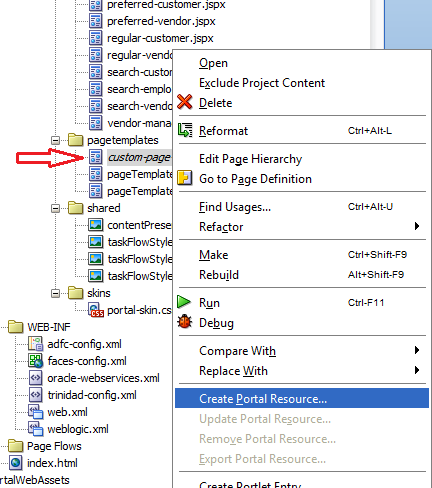
    Step2: Create a portal resource of the jspx document as shown below.


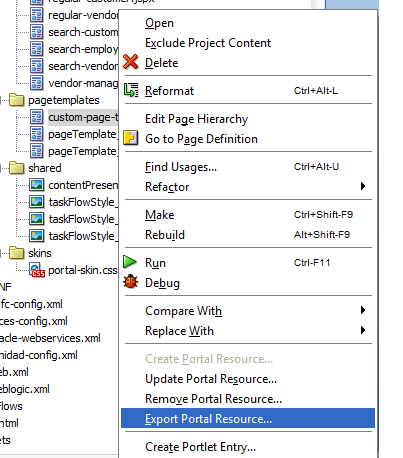
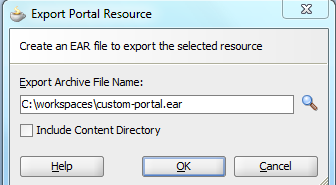
    Step3: Once Done, expose that portal resource as a ear file to be uploaded later to the webcenter admin console and made available to create new pages


    Step4: Login to the webcenter admin console and click the page styles. Click the upload button and upload the ear file that was exported in step 3, as shown below.


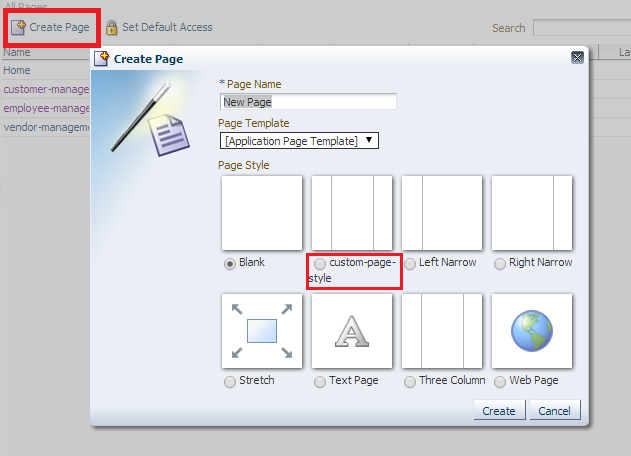
    Step5: Select the page style as shown below in the page creation dialog


    How to make run time customizations to the webcenter portal application?

    Inorder to make the run time customizations, we need to login to the webcenter portal administration console.

    We can open the console from the following link

    http://hostname:port/Application-Context-Root/admin

    For example: http://localhost:7101/PracticeWebcenterOne-Portal-context-root/admin


    All the actions that can be performed in the admin console is coming up in the next post.

    Wednesday, February 26, 2014

    java.lang.IllegalStateException: The expression "#{bindings}" evaluates to "null" exception

    Sometimes when using the Webcenter out of the box taskflows, we might drag and drop the them from the resource palette either to page template or page. But when running the page might result in the following error

    java.lang.IllegalStateException: The expression "#{bindings.pagemenudefinition1.regionModel}"
    (that was specified for the RegionModel "value" attribute of the
    region component with id "pt_r2") evaluated to null.
    This is typically due to an error in the configuration
    of the objects referenced by this expression. If it helps,
    the expression "#{bindings.pagemenudefinition1}" evaluates to "null"
    If it helps, the expression "#{bindings}" evaluates to "null".
    Now using an empty RegionModel instead.


    Solution

    The reason is that the pagedef doesn't have a reference to the taskflow. or the bindings does not have the reference. Open the page source, you will find the bindings warning as below


    Add the page reference binding as below


     Or edit the page def source code as below